You built a beautiful page in Elementor, hit publish, and then watched it crawl on your phone. You are not alone. Elementor powers more than 10 million WordPress sites, and “my site is slow” is still one of the most common complaints we hear from freelancers and agencies. The good news: you can speed up Elementor site pages without rebuilding them. Most of the wins come from a handful of settings and habits.
This guide walks you through 10 practical fixes, in the order we recommend doing them. None of them need you to write code.
Before you speed up Elementor site pages, measure them
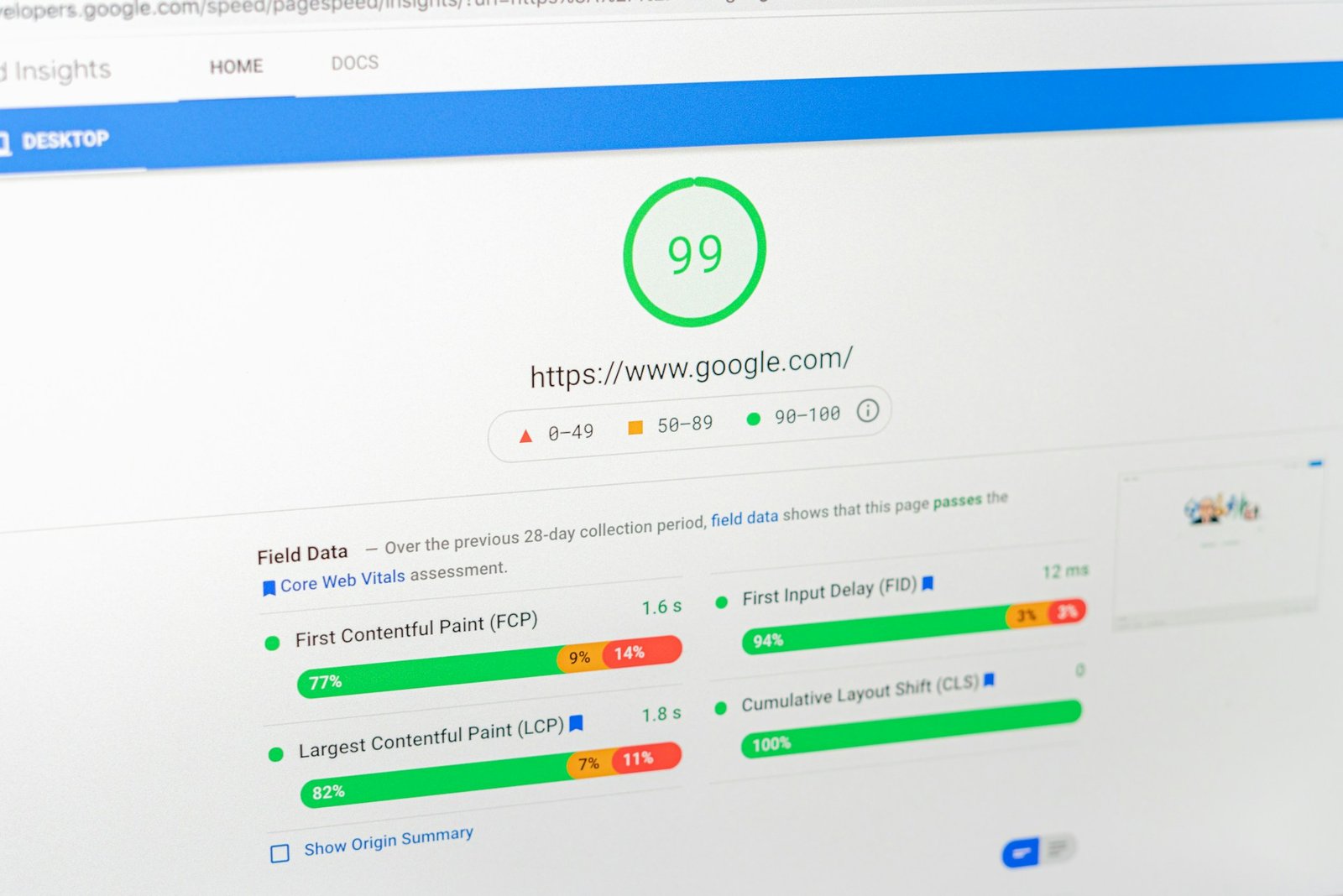
Guessing wastes time. Open PageSpeed Insights and test your homepage plus one heavy inner page (a landing page or a WooCommerce product). Test mobile first, because that is where most sites fail.
Look at the three Core Web Vitals. Google says a page is in good shape when, at the 75th percentile of real visits, it hits these targets:
| Metric | What it measures | “Good” target |
|---|---|---|
| LCP (Largest Contentful Paint) | How fast the main content appears | 2.5 seconds or less |
| INP (Interaction to Next Paint) | How fast the page reacts to taps and clicks | 200 milliseconds or less |
| CLS (Cumulative Layout Shift) | How much the layout jumps while loading | 0.1 or less |
Write your scores down. After each fix, test again so you know what actually helped.
1. Update WordPress, Elementor and PHP
Old software is slow software. Elementor ships performance work in almost every release, and the current free version (4.3.2 at the time of writing) needs WordPress 6.8 or newer.
PHP matters even more. WordPress recommends PHP 8.3 or higher, and PHP 8.2 stops getting security fixes on 31 December 2026. If your host still runs 8.1 or 8.2, switch to 8.3 or 8.4 in your hosting panel. Take a backup first, then check your key pages after the switch.
2. Turn on Elementor’s built-in performance settings
Many site owners never open this screen. Go to Elementor > Settings > Performance and review each option. Depending on your version, you will find:
- CSS Print Method: External File, so browsers can cache your styles
- Optimized Image Loading, which improves how and when images load
- Lazy Load Background Images, so off-screen section backgrounds wait until they are needed
- Element Caching, which saves rendered widgets so the server does less work on each visit
Then check the Features tab and keep modern options active, such as Inline Font Icons and Optimized Markup. Each one trims code from every page.
3. Switch old sections to Flexbox Containers
Pages built with the old section and column structure produce a lot of nested HTML. Containers do the same job with fewer wrappers, which means a lighter page and faster rendering. You do not need to convert everything at once. Start with your homepage and top landing pages.
4. Fix your images (the biggest LCP win)
Images are usually the heaviest part of an Elementor page. A few rules fix most problems:
- Upload images at the size they display. A 4000 pixel photo in a 600 pixel box is pure waste.
- Serve WebP or AVIF instead of large JPGs and PNGs.
- Do not lazy load the hero image. Your largest above-the-fold image should load right away, because it is usually your LCP element.
- Set width and height on images so the layout does not jump, which protects your CLS score.
5. Add page caching
Without caching, WordPress builds every page from scratch for every visitor. A caching layer serves a ready-made copy instead. Many good hosts include server-level caching, so check your hosting dashboard before installing anything. If your host has none, use one reputable caching plugin. Never run two caching plugins at once, because they fight each other.

6. Load fewer fonts, and host them locally
Every font family and weight is another file to download. Pick one or two families and only the weights you actually use (for example 400 and 700). Loading Google Fonts from your own server also removes an extra connection to a third party. Set this in Elementor’s settings, or disable Google Fonts entirely if your theme already handles typography.
7. Remove widgets and plugins you do not use
Every active plugin can add scripts to your pages. Go through your plugin list and delete anything you have not used in the last few months. Inside Elementor, open the Element Manager and deactivate widgets you never use, so their assets never load.
This is also where addon choice matters. A good addon pack should only load a widget’s CSS and JavaScript on the pages where that widget appears, not across the whole site. That is how we build every widget in Bright Addons.
8. Tame third-party scripts
Chat bubbles, heatmaps, social feeds, and multiple analytics tags are silent speed killers. They are also the most common cause of a poor INP score, because they keep the browser busy when a visitor taps a button.
Ask of each one: does this earn its place? Remove what you can. Delay the rest until after the page loads or until the user scrolls.
9. Keep animations and sliders light
Entrance animations on every section, autoplaying video backgrounds, and heavy sliders look great on a fast laptop and terrible on a mid-range phone. Use motion where it guides attention, such as one hero animation or a highlighted pricing card, and skip it elsewhere. Replace a slider in your hero with a single strong image and a clear button. It usually converts better too.
10. Clean your database and review your hosting
Over time, WordPress collects post revisions, expired transients, and spam comments. Limit revisions and clean the database every few months. Then look honestly at your hosting. If your server response time (Time to First Byte) is slow even with caching, no plugin will save you. Moving to a host with modern PHP, object caching, and a data center near your visitors is often the single biggest upgrade.
Test on a real phone
Lab tools are useful, but real visitors use real phones on real networks. Open your site on a mid-range Android phone over mobile data. Tap menus, open accordions, and submit a form. If something feels sluggish, it probably is, and your INP score will show it.

Conclusion
You do not need a rebuild to speed up Elementor site pages. Update your software, switch on Elementor’s performance settings, fix your images, add caching, and cut the scripts and plugins you do not need. Do one fix at a time, measure after each, and you will likely see your Core Web Vitals move into the green within a day or two.
FAQ
Why is my Elementor site so slow on mobile? Mobile phones have slower processors and networks than desktops, so heavy images, many fonts, and third-party scripts hurt more. Start with image sizes, lazy loading below the fold, and removing unused scripts.
Does Elementor slow down WordPress? Any page builder adds some code, but a well-configured Elementor site can pass Core Web Vitals. Most slowness comes from oversized images, too many plugins, old PHP, and missing caching rather than Elementor itself.
What is a good PageSpeed score for an Elementor site? Focus on Core Web Vitals rather than the single score. Aim for LCP under 2.5 seconds, INP under 200 milliseconds, and CLS under 0.1 on mobile. A score of 90 or above is a nice bonus, not the goal.
Do Elementor addons make my site slower? They can if they load all their files on every page. Choose addons that load assets only where a widget is used, and deactivate widgets you do not need.
Build fast pages with Bright Addons
If you want more design options without the extra weight, try Bright Addons. The free version gives you 20 lightweight widgets, and Pro adds 60+ more from $19 a year. Browse the widget library, read the setup docs, or compare plans and pricing when you are ready.