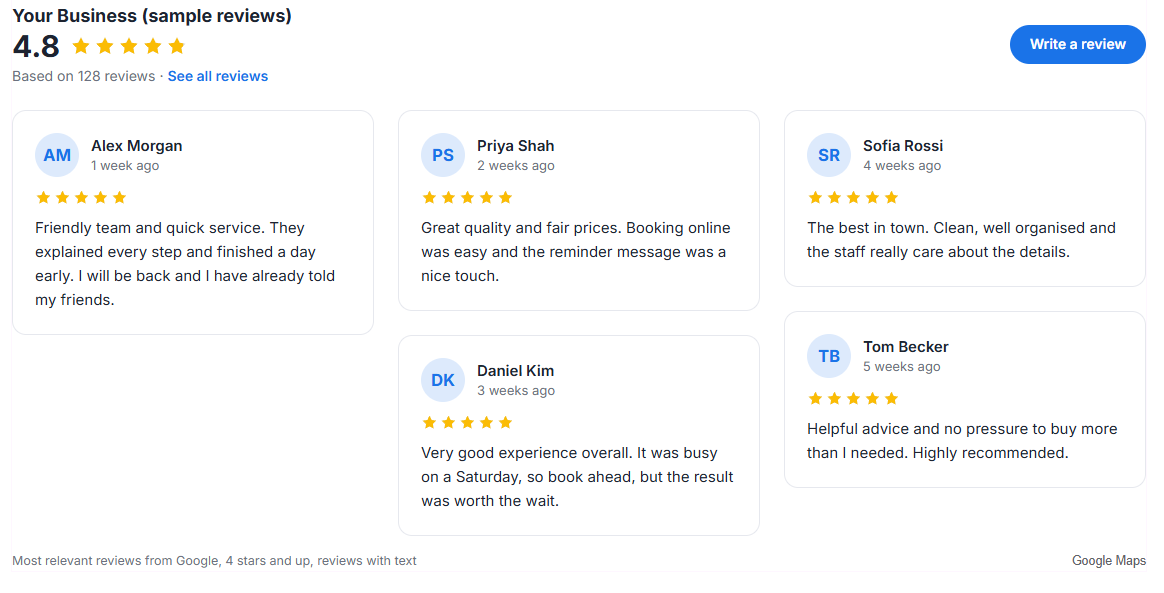
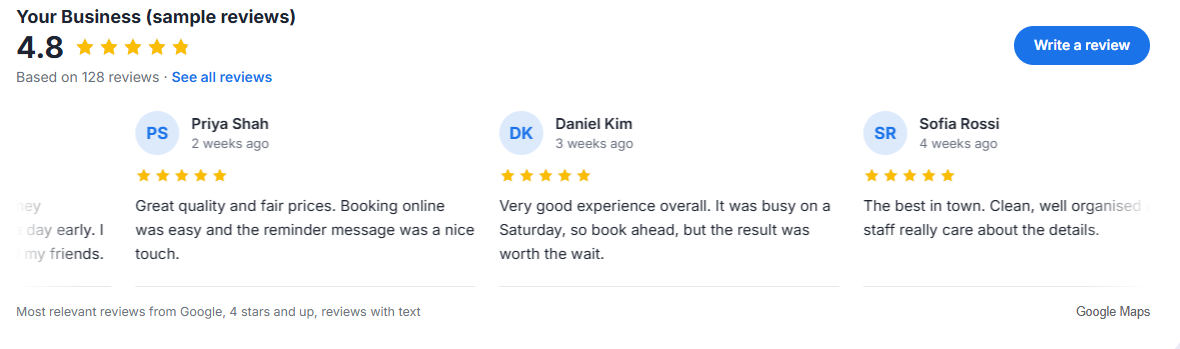
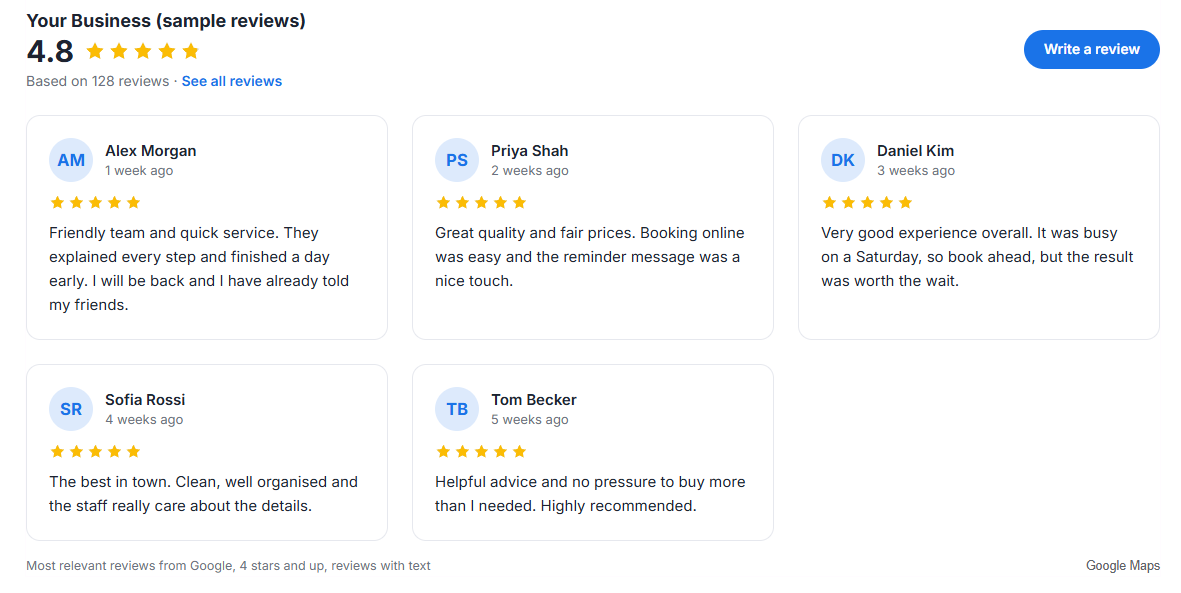
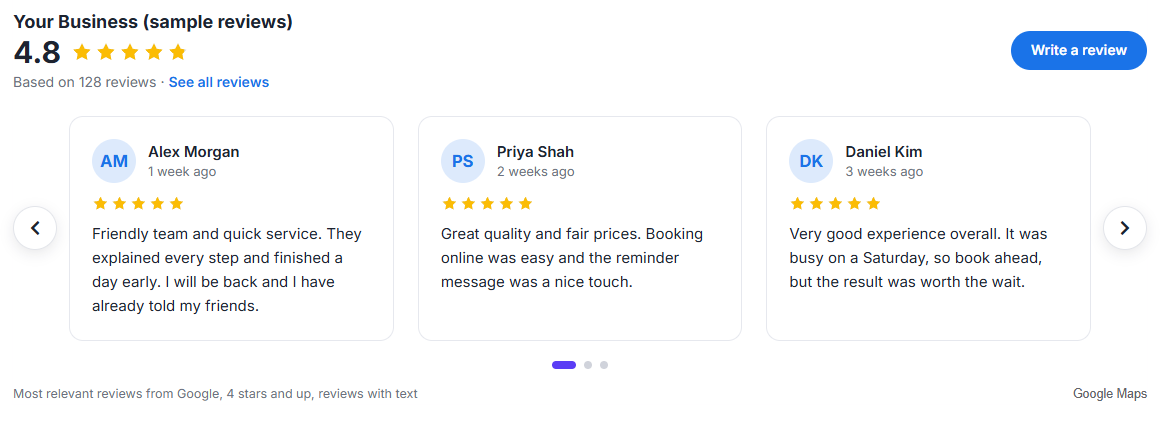
Show your Google rating and reviews by typing your business name.
Google Reviews shows the rating, the review count and the reviews of a business from Google. Type the business name and the widget finds it on Google Maps; there is nothing else to copy or paste. Pick one of seven layouts, from a full grid of reviews to a small badge or a floating badge in the corner of every page.

Put the rating summary and a carousel of reviews near the top of the home page so new visitors see real feedback first.
Add the floating badge to the footer template. It shows the rating in a corner and opens the latest reviews on click.
Use the grid or masonry layout on service or location pages, with the Write a review button for happy customers.
Place the rating badge next to a contact form or a pricing table.
What you need: A Google API key with Places API (New) switched on, added once in Bright Addons Pro, Templates and Integrations tab.
Yes, once. Google only shares reviews through its Places API, which needs a key. Add it in Bright Addons Pro, Templates and Integrations tab; after that every widget only needs the business name.
Google needs a billing account on the key but gives a free monthly amount. One business checked every 12 hours uses about 60 requests a month.
Google’s Places API shares up to 5 reviews per business. The rating and review count shown are the real totals.
Yes. Add one widget per location and type each business name, or use the Place ID of each location.
Customer reviews in a swipeable carousel with star ratings.
Count down to a date for launches and offers.
Show one plan with its price, features and a button.
A headline, short text and a button on a background.
Bright Addons Pro has 78 Pro widgets plus all 53 free widgets, 10 extensions, a Theme Builder and 32 dynamic tags. From $10 a year, with a 14-day money-back guarantee.
Yearly and lifetime plans. Use this code at checkout:
14-day money-back guarantee. Ends Monday 30 November at 23:59.