
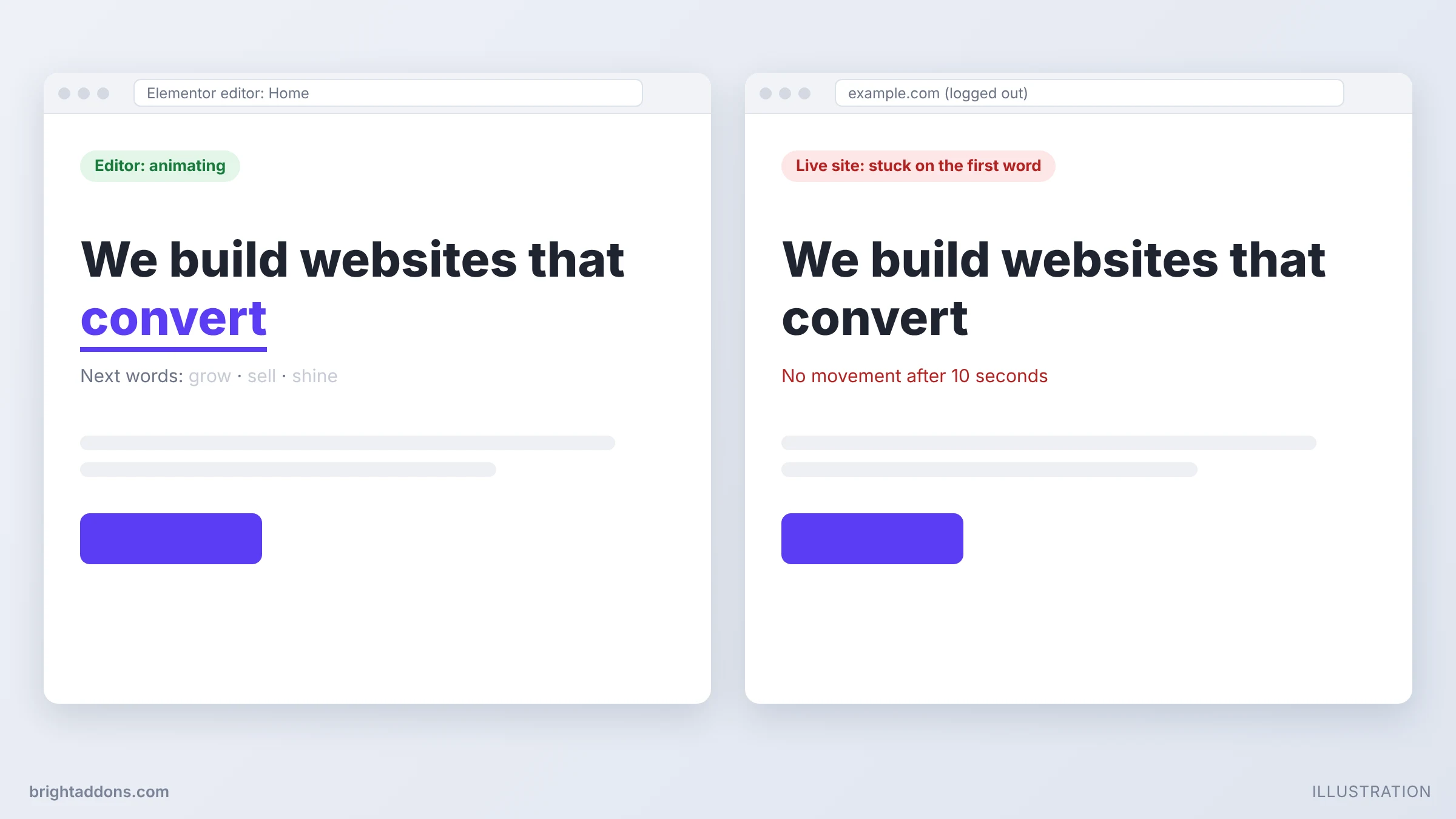
You set up a rotating headline, it looks perfect in the editor, and then the live page shows the first word and nothing else. Or the headline is gone and there is an empty gap where it should be. If your Elementor animated headline is not working, the widget settings are rarely the problem. In most cases a cache, a “delay JavaScript” option or a CSS rule is stopping the small script that runs the animation.
This guide walks through 7 fixes in the order we check them. They work for Elementor Pro’s own Animated Headline widget and for addon widgets, including the Animated Headline widget (Pro) in Bright Addons Pro.
Why an animated headline stops moving
An animated headline has two parts. The text is printed in the page HTML, so you always see at least the first word. The movement (rotating, typing or highlighting words) comes from JavaScript that runs after the page loads. Anything that blocks, delays or breaks that script leaves you with a static headline.
That is good news: the fix is usually a setting, not a rebuild.
Common problems and fixes at a glance
| What you see | Most likely cause | Go to |
|---|---|---|
| Works in the editor, frozen on the live site | Cache or JavaScript optimization | Fix 1 and 2 |
| Works when logged in, frozen when logged out | Page cache serving old files | Fix 1 |
| Headline invisible, empty space | Entrance Animation waiting for delayed JavaScript | Fix 3 |
| Words overlap, get cut off or the line jumps | CSS rules or late fonts | Fix 4 and 5 |
| Broken on phones only | Width, wrapping or responsive settings | Fix 6 |
| Stopped after an update | Old cached files or a conflict | Fix 1 and 7 |
How to fix an Elementor animated headline not working
Fix 1: Clear every cache layer
Most “it worked yesterday” problems are old files. Clear them in this order:
- In WordPress, go to Elementor > Tools and click Regenerate Files & Data (older versions call it Regenerate CSS & Data).
- Purge your cache plugin.
- Purge the server cache in your hosting panel, if your host has one.
- Purge your CDN, for example Cloudflare.
- Open the page in a private browser window.
A quick test: if the headline works when you are logged in but not when you are logged out, it is almost certainly a cache. Many cache plugins skip logged-in users, so you see a fresh page while visitors get the stored one.
Fix 2: Exclude the headline script from delayed or combined JavaScript
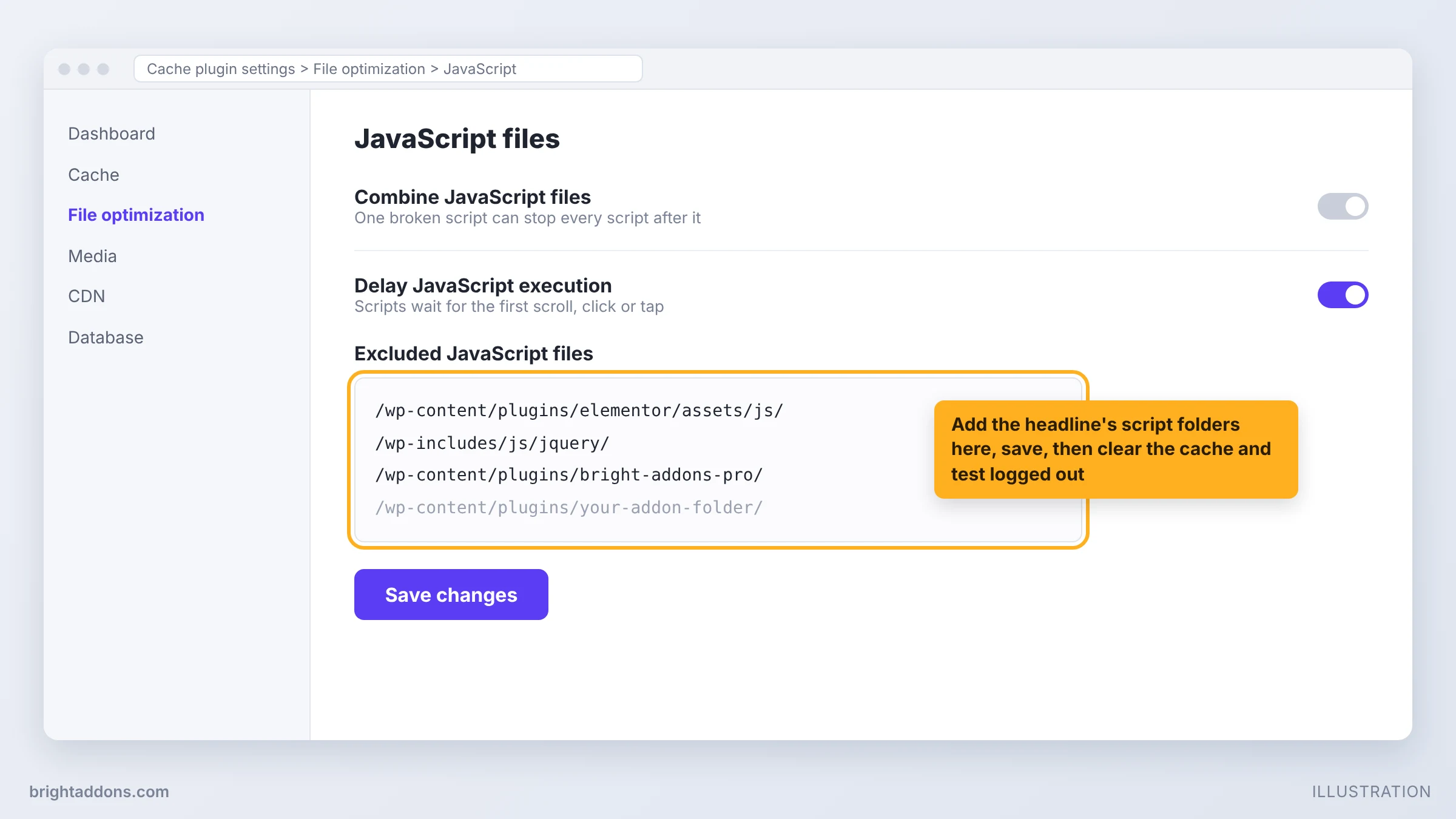
This is the number one cause. Performance plugins such as WP Rocket, LiteSpeed Cache and Autoptimize can “delay JavaScript execution” until the visitor scrolls, clicks or taps. A headline at the top of the page then waits for that first interaction, so it looks frozen. “Combine JavaScript” has a different risk: if one script in the combined file has an error, every script after it stops too.
- Turn off Delay JavaScript and Combine JavaScript for a minute and test the page.
- If the headline moves, turn them back on and add exclusions: Elementor’s frontend scripts, jQuery (if your widget needs it) and the folder of the plugin that adds the widget, for example /wp-content/plugins/your-addon-folder/.
- Clear the cache again (Fix 1) and test logged out.
If you use Bright Addons Pro, this step is mostly done for you. Since version 1.0.1, every Bright Addons script tag carries the skip markers that common optimizers respect (data-no-optimize, data-no-defer, data-cfasync=”false” and nowprocket). In our tests, the widgets still started even when another plugin’s broken script was in the same combined file.
Fix 3: Check the Entrance Animation
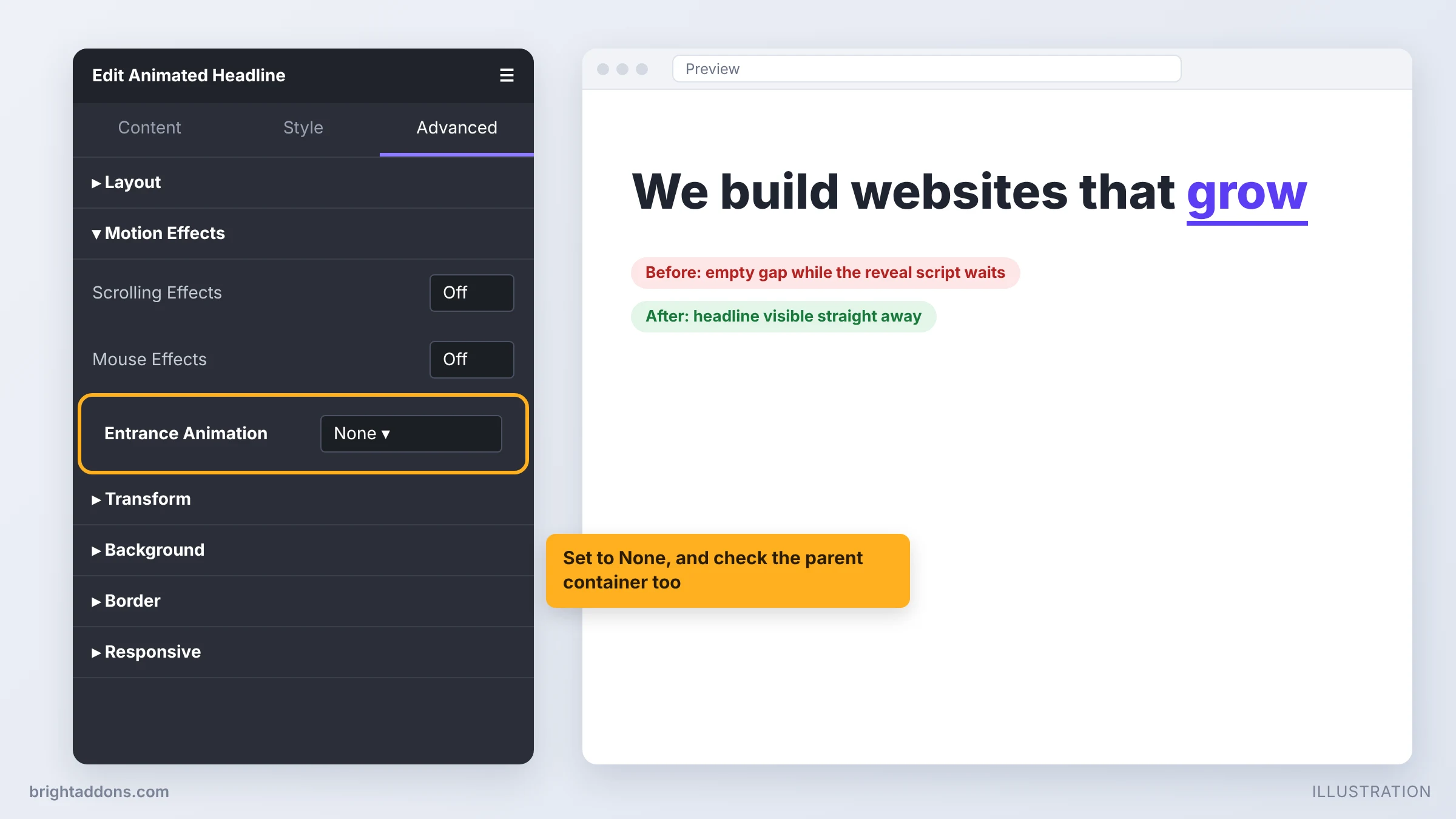
Elementor’s Entrance Animation (Advanced tab > Motion Effects) hides an element until a script reveals it on scroll. If that script is delayed, the headline stays hidden and you see an empty gap.
- Select the headline widget and open Advanced > Motion Effects.
- Set Entrance Animation to None.
- Check the parent container too, since its animation hides everything inside it.
The headline already moves, so a second animation on top rarely adds much.
Fix 4: Look for CSS that hides or clips the moving words
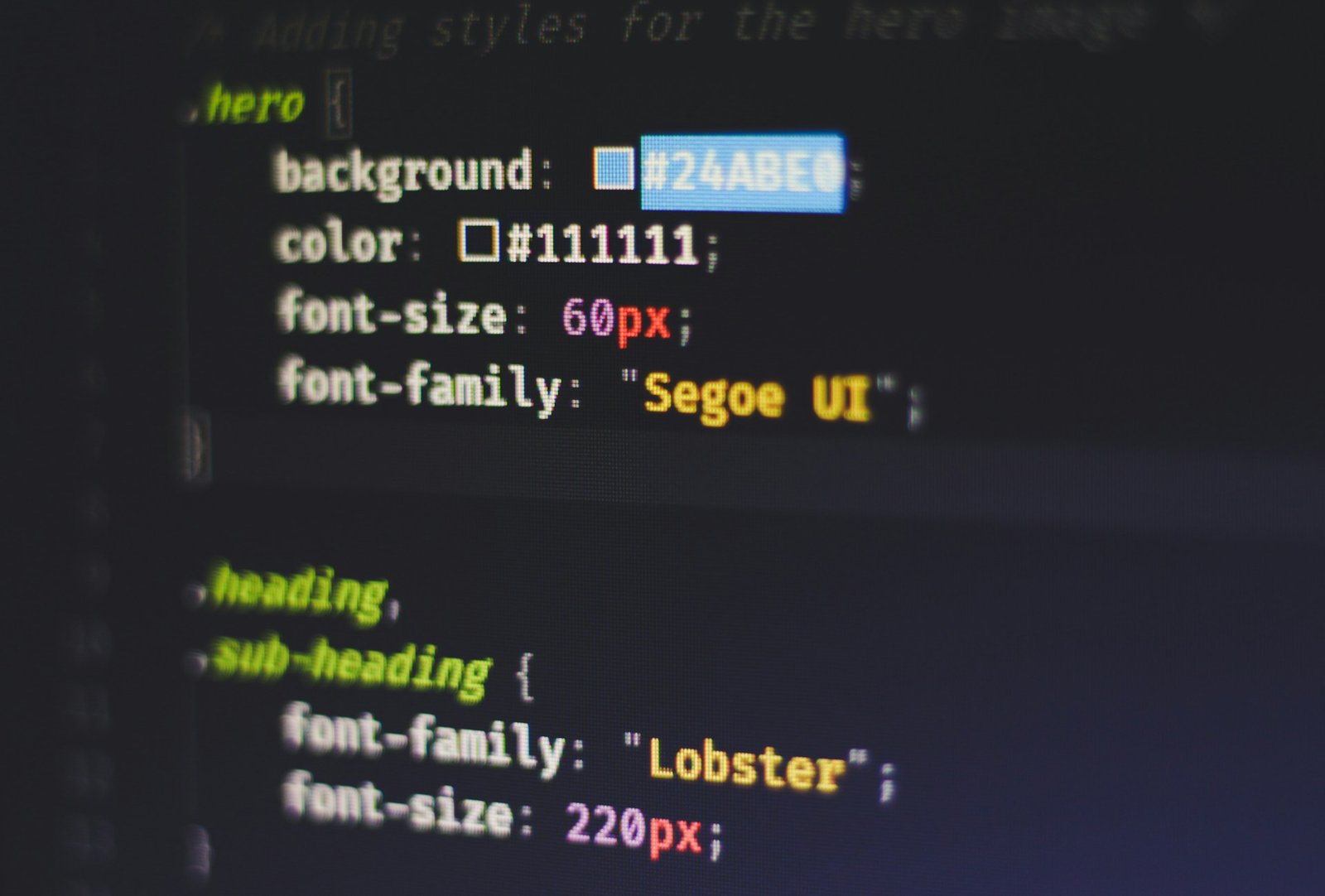
The moving words usually sit in a small box with a fixed height and hidden overflow. Theme styles or custom CSS that change line-height, display, overflow or white-space on headings can cut words off or make them overlap.
- Right-click the headline and choose Inspect.
- Untick rules that come from your theme or custom CSS and watch the headline.
- Set an explicit line height in the widget’s Style tab.
- Open the Console tab. A red error from another plugin can stop scripts that load after it, so note which file it names.
Fix 5: Fix late fonts and jumping text
Rotating words often have different widths. If a web font loads late, the script measures the words in the fallback font and gets the size wrong, so words are cut off or the line jumps.
- Load fonts from your own site instead of an outside service, and use font-display: swap.
- Give the animated part a minimum width, or pick words of similar length.
- Keep the word list short (3 to 5 words reads best).
Bright Addons Pro has a Custom Fonts tool (Pro) that lets you upload your own font files and use them in Elementor. The Custom Fonts guide shows the steps.
Fix 6: Test the phone layout

A long word that fits on desktop can wrap to a second line on a phone, push the content down or get cut off.
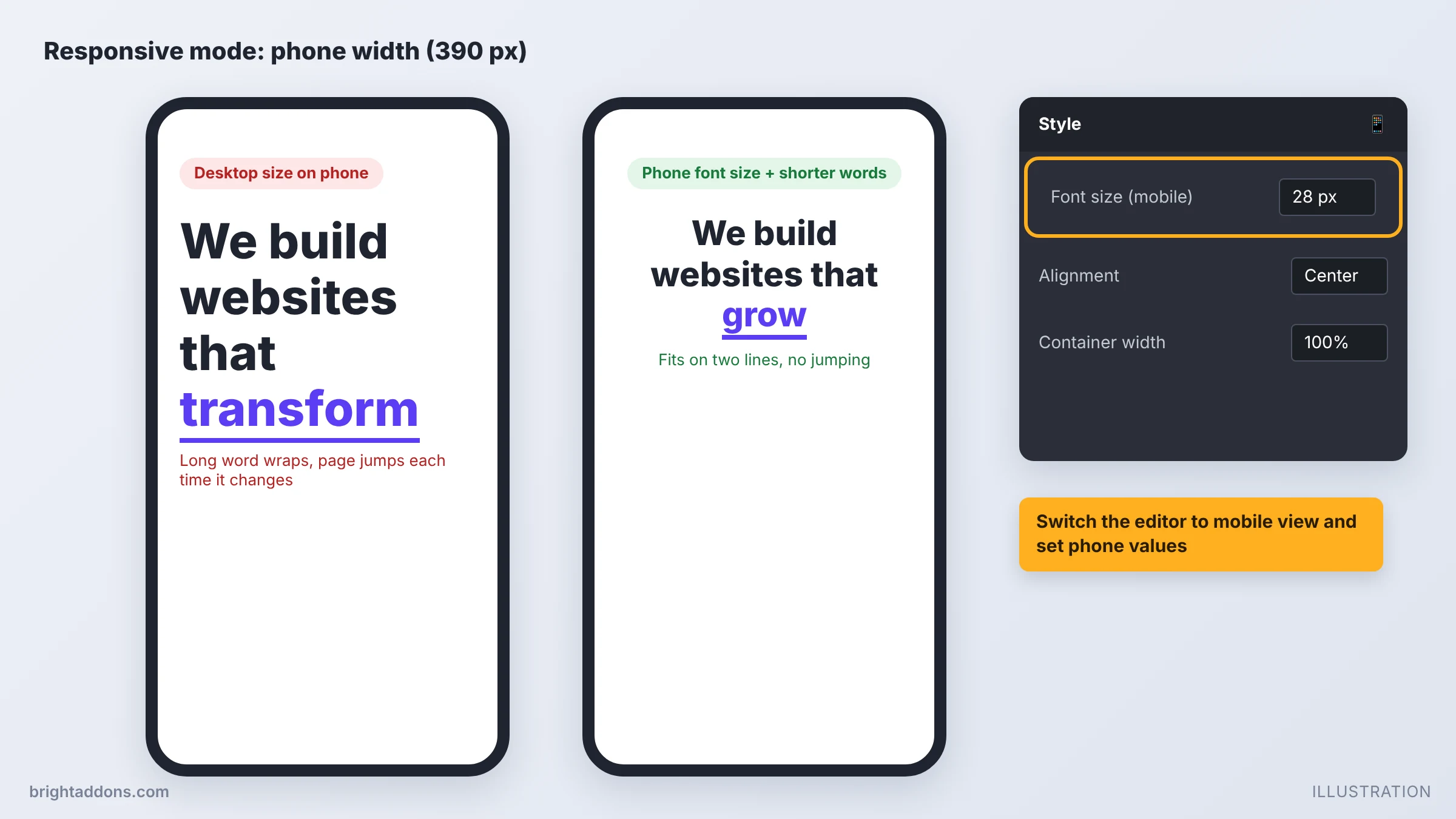
- Switch the editor to mobile view and set a smaller font size for phones in the Style tab.
- Check that the widget’s container gives it the full width. Widgets inside Row containers can shrink to their content.
- Shorten the longest word, or center the headline so it has room on both sides.
- On your test phone, check the “reduce motion” setting. Some animation scripts pause or simplify when it is on, which is the right behaviour, not a bug.
Fix 7: Rule out a plugin or theme conflict
If nothing above helped, find the plugin or theme that is getting in the way:
- Update Elementor, Elementor Pro (if you use it) and your addon plugin.
- For editor problems, turn on Elementor > Tools > Safe Mode, which opens the editor without other plugins and your theme.
- For the live site, copy it to a staging site, then switch plugins off one at a time and test after each.
- Switch to a basic theme such as Hello Elementor to see if the theme is the cause.
After an update, old files can still be served under the same address. Since version 1.1.2, Bright Addons Pro stamps every stylesheet and script with a version taken from the file itself, so browsers and caches fetch the new file after each update.
The easy way: Animated Headline in Bright Addons Pro
If you want a headline widget that is built to avoid these problems, try the Animated Headline widget (Pro). It was one of the first widgets in Bright Addons Pro, and it follows the same rules as all our Pro widgets: no control names that clash with Elementor’s entrance animations, script tags that common optimizers skip, and versioned files after updates.
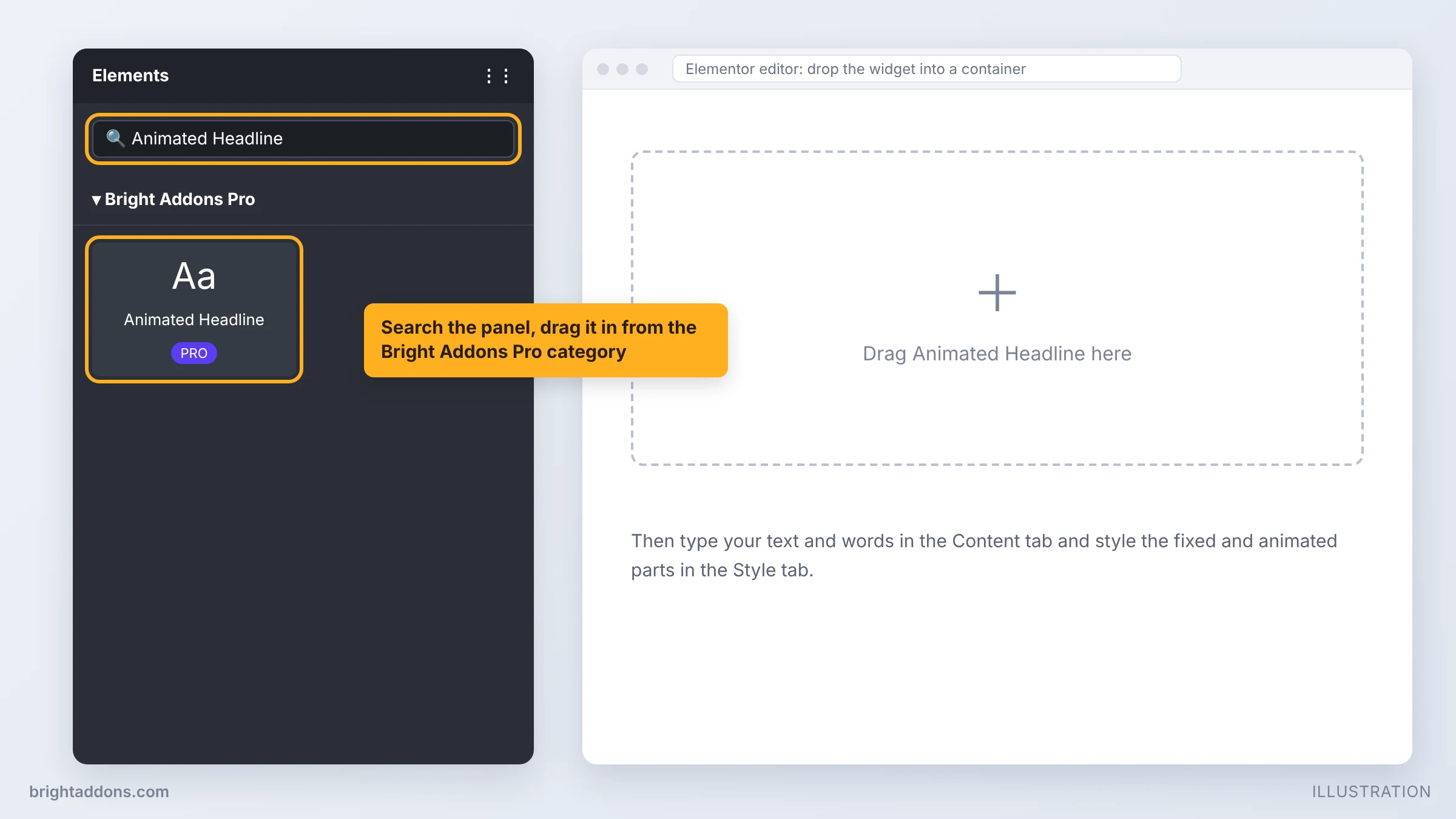
- Edit your page with Elementor and search for “Animated Headline” in the Bright Addons Pro category.
- Drag it into your container and type your text and words in the Content tab.
- Style the fixed and animated parts in the Style tab, then check the phone view.
The Animated Headline guide explains every option.
Don’t need motion at all? The free Advanced Heading widget (Free) adds a pre-title, dual color, gradient or marker highlight, a separator and a subtitle, with no animation script to break. For a line of words that scrolls across the page, look at Text Marquee (Pro).
FAQ
Why does my Elementor animated headline work in the editor but not on the live site? The editor loads every script right away, but the live site goes through your cache and optimization plugins. A delayed or combined JavaScript setting, or an old cached page, is the usual cause. Clear all caches and exclude the widget’s script from delay and combine.
Does delaying JavaScript break Elementor animations? It can. Delayed scripts only run after the first scroll, click or tap, so anything at the top of the page waits. Exclude Elementor’s frontend scripts and your addon’s folder from the delay list.
Is the Animated Headline widget free? Elementor’s own Animated Headline is part of Elementor Pro. In Bright Addons, Animated Headline is a Pro widget. The free Bright Addons plugin has the Advanced Heading widget for styled headings without motion.
Does an animated headline hurt SEO? Not when it is built well. The text sits in the page HTML, so search engines can read it. Make sure the first word makes sense on its own, because that is what visitors see before the script runs.
Conclusion
When an Elementor animated headline is not working, work from the outside in: clear caches, exclude the script from delayed JavaScript, remove the Entrance Animation, then check CSS, fonts, the phone layout and conflicts. Nine times out of ten the first two fixes solve it.
If you want widgets that are built to survive caching and optimization plugins, Bright Addons Pro for Elementor has 98 Pro widgets, 10 extensions and every free widget, 154 widgets in total. Black Friday prices start from $10 a year until 30 November 2026, no code needed, with a 14-day money-back guarantee. See the plans or the Black Friday page. Prefer to start free? Get Bright Addons for Elementor (56 free widgets), Bright Addons Blocks Library for the block editor and Bright Addons for WooCommerce on WordPress.org.