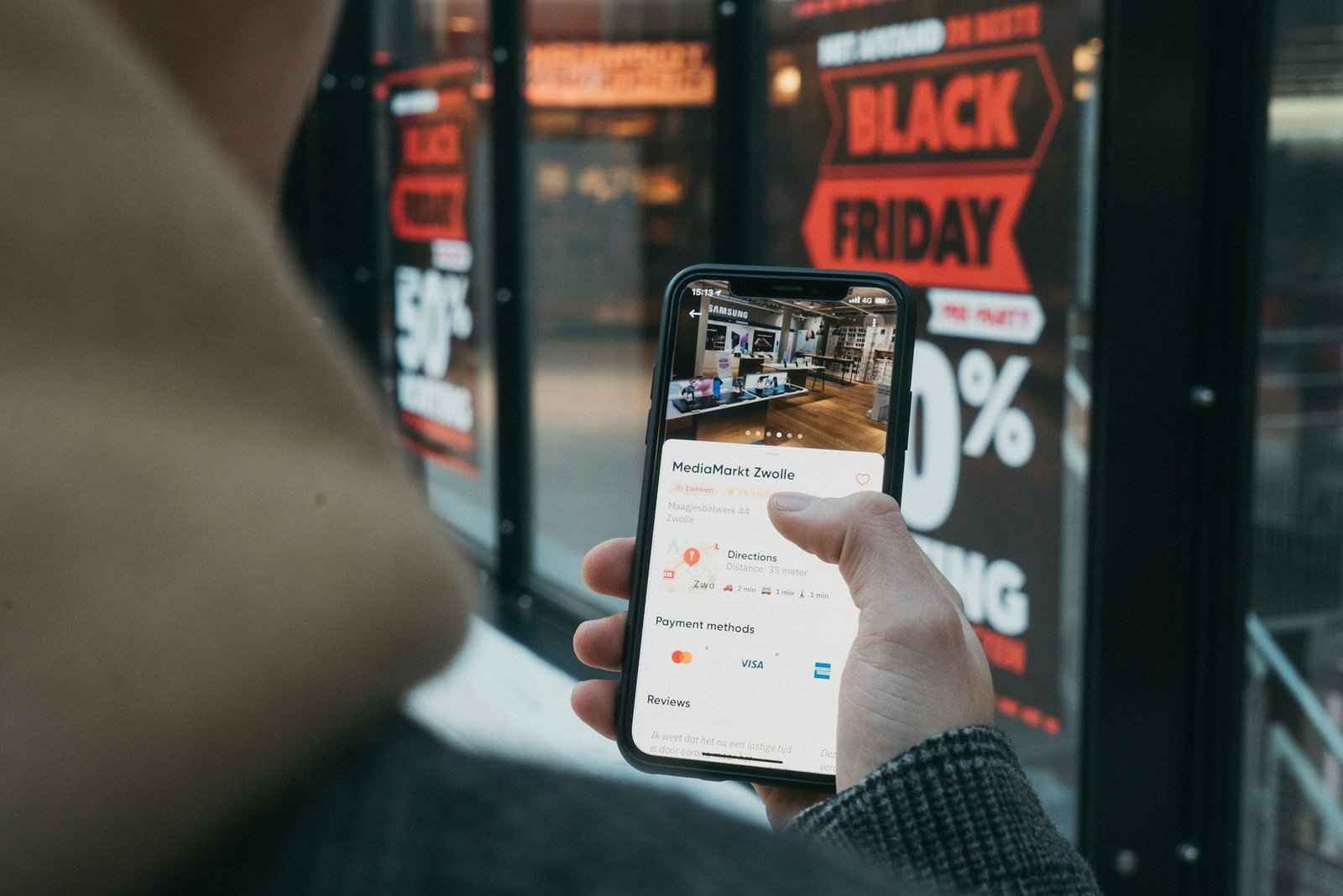
Your next big order will probably come from a phone. Adobe expects US shoppers to spend $275.1 billion online between 1 November and 31 December 2026, and 57.4% of that money is forecast to come from mobile devices. On Thanksgiving Day, mobile is expected to reach a record 63% of online spend.
At the same time, Baymard Institute’s average documented cart abandonment rate is still 70.22%. Roughly 7 in 10 carts never become orders. That gap is exactly where mobile checkout optimization pays off.
This guide gives you 9 practical fixes for a WooCommerce store, most of which take minutes. Make them this week and your checkout will be ready for Black Friday (27 November) and Cyber Monday (30 November).
Why mobile checkout optimization matters more this season
Cyber Week is the busiest stretch of the year. Adobe forecasts $12.9 billion in US online sales on Black Friday and $15.1 billion on Cyber Monday. Buy now, pay later spending is expected to hit $21.3 billion in November and December, and about 82% of it is forecast to happen on mobile.
So shoppers are on phones, ready to pay. The problem is what stops them. Baymard asked shoppers why they left during checkout (leaving out the people who were only browsing):
| Reason for leaving checkout | Share of shoppers |
|---|---|
| Extra costs too high (shipping, tax, fees) | 40% |
| Delivery too slow | 20% |
| Did not trust the site with card details | 19% |
| Had to create an account | 18% |
| Checkout too long or complicated | 17% |
| Website errors or crashes | 17% |
| Returns policy not good enough | 13% |
| Could not see the total cost up front | 12% |
| Card declined | 10% |
| Not enough payment methods | 9% |
Every one of these hurts more on a phone. The screen is small, the keyboard covers half the page, and the network can drop on a train. The fixes below target this list directly.
9 mobile checkout fixes for WooCommerce

1. Turn on guest checkout
Forcing an account is one of the easiest ways to lose a mobile sale. In WooCommerce, go to WooCommerce > Settings > Accounts & Privacy and allow customers to place orders without an account. You can still offer to create an account after the order, when the customer has already paid and has a reason to come back.
2. Cut the form down to what you need
Baymard found that the average US checkout shows 23.48 form elements by default, while a good checkout can work with 12 to 14 (about 7 or 8 fields). On a phone, every extra field is another tap, another keyboard and another chance to give up.
- In the WooCommerce Checkout block, select the block and switch Company, Address line 2 and Phone to optional or hidden if you do not need them.
- Use the right keyboard: email fields should open the email keyboard and phone fields the number pad. WooCommerce does this for its own fields; check any custom fields you added.
- Keep browser autofill working. Avoid plugins that rename the standard address fields.
- Need to add, hide or reorder fields? The free Checkout Field Editor module in Bright Addons for WooCommerce (Free) does it without code.
3. Add express wallets at the top
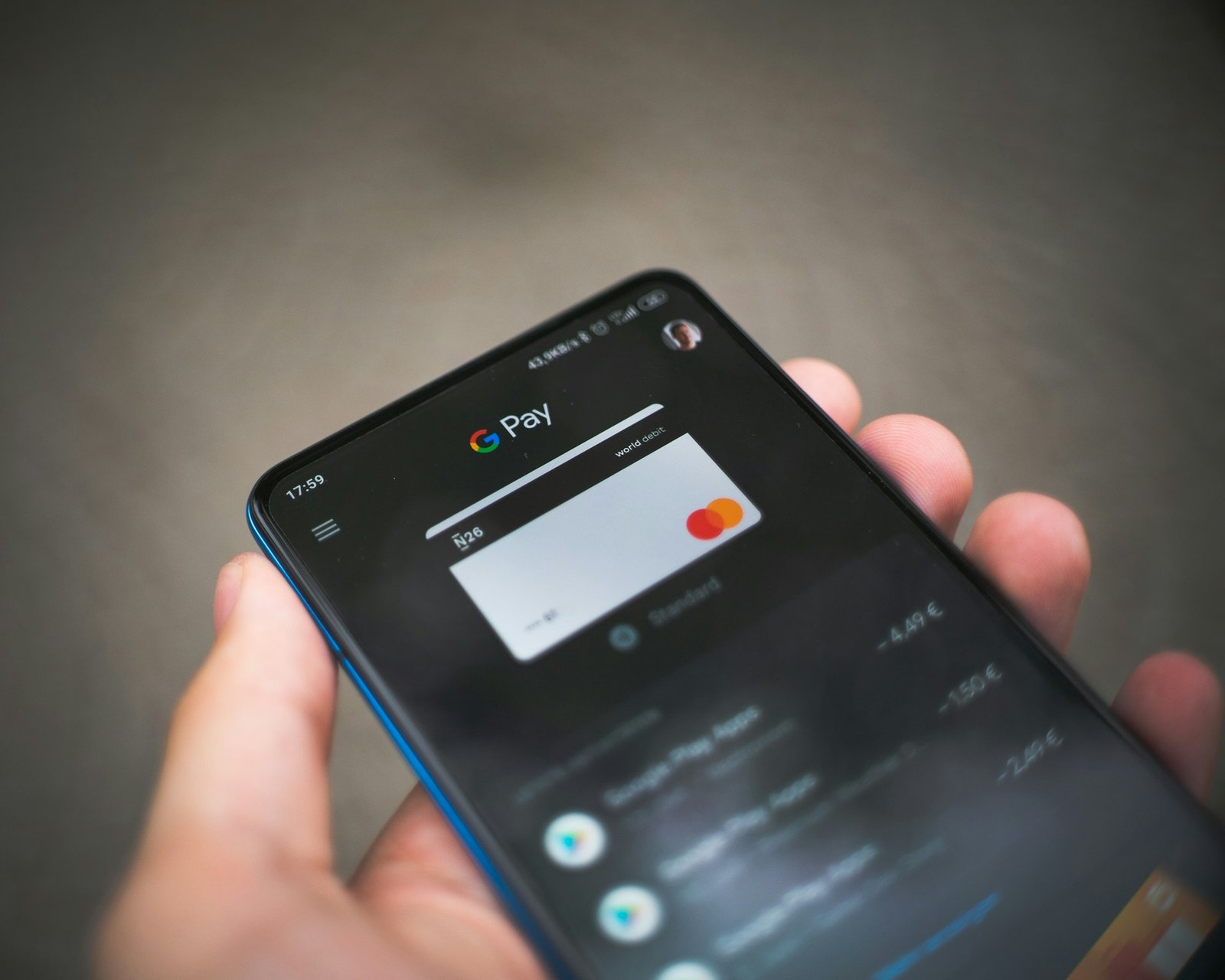
Apple Pay and Google Pay let a shopper pay with a fingerprint or face scan, with no card number and often no address to type. Most WooCommerce payment gateways, such as WooPayments and Stripe, can show these buttons on the cart and checkout pages. Turn them on in your gateway settings and make sure they appear above the form, not under it. If your gateway offers buy now, pay later, consider it too, given how much of that spending happens on phones.
4. Show the full cost early
Surprise costs are the top reason people leave. Show shipping and the final total on the cart page, not only on the last step. A free shipping threshold also helps, as long as shoppers can see how close they are. The Side Cart and Free Shipping Bar module in Bright Addons for WooCommerce (Free) adds a slide-out cart with a progress bar toward free shipping.
5. Make every tap easy
Thumbs are less precise than a mouse. Make buttons and links large enough to hit (Apple recommends at least 44 by 44 points), leave space between them, and keep the main button full width on phones. If many shoppers buy a single product, a Buy Now Button (Free module in Bright Addons for WooCommerce) can send them straight to checkout and skip the cart step.
6. Keep cart and checkout pages light
Checkout pages should load fast even on a weak connection. Remove sliders, pop-ups, chat widgets and heavy animations from the cart and checkout. Make sure your caching plugin does not cache the cart, checkout or my account pages, and test on a throttled connection in Chrome DevTools.
7. Build trust next to the pay button
Almost 1 in 5 shoppers did not trust the site with their card. Show accepted payment logos, a short line about secure payment, your returns policy and a contact link close to the Place order button. Keep your logo and colors the same on every step, so the checkout never looks like a different site.
8. Let shoppers save items for later
Many people browse on a phone and buy later on a laptop. A wishlist keeps that sale alive. The free Wishlist module in Bright Addons for WooCommerce (Free) works for guests through a cookie that lasts 30 days, then merges with their account when they log in. See the Wishlist module guide for setup.
9. Handle errors and declined cards kindly
Errors and declined cards cost sales too. Show error messages next to the field that needs fixing, keep everything the shopper already typed, and offer a second payment method when a card fails. Place a test order with a wrong card number to see what your store does.
Designing cart and checkout pages in Elementor
If your store is built with Elementor, keep checkout pages in a single column on phones and give the order summary a clear, short layout. Two Pro widgets help here:
- Woo Store Pages (Pro) places the WooCommerce cart, checkout (with the order received page), my account and empty cart message inside your own Elementor layout.
- Woo Product Details (Pro) builds the product page from WooCommerce parts: gallery, title, rating, price, excerpt, add to cart, meta and tabs. On phones, put the price and add to cart button near the top.
Both come with Bright Addons Pro for Elementor, which has 98 Pro widgets and 154 widgets in total.
Test your mobile checkout before Cyber Monday

Do this on a real iPhone and a real Android phone, not only in a desktop preview:
- Add a product to the cart and place a full order as a guest.
- Pay once with an express wallet and once with a card.
- Apply a discount and check that the total updates.
- Turn on a slow connection and repeat the order.
- Enter a wrong postcode and a declined test card to see the error messages.
- Check the order email and the thank you page on the phone.
Write down every moment you hesitated. Those are the spots your customers hesitate too.
Conclusion
Mobile checkout optimization is not one big redesign. It is a set of small fixes: guest checkout, fewer fields, express wallets, honest totals, big buttons, light pages and clear errors. With most holiday spending now on phones, each fix you make before 30 November can turn more of those abandoned carts into orders.
FAQ
What is mobile checkout optimization? It means making the steps from cart to payment fast and easy on a phone: fewer fields, guest checkout, express wallets, clear totals and pages that load quickly on mobile networks.
What is a good cart abandonment rate? Baymard’s average documented rate is 70.22%, from studies that range from 55% to 84%. There is no universal good number, so track your own rate and aim to bring it down over time.
Does WooCommerce support Apple Pay and Google Pay? Yes, through payment gateways such as WooPayments and Stripe. Turn on the express checkout options in your gateway settings and test them on a real phone.
Should I force customers to create an account? Usually not. Shoppers often leave when an account is required. Allow guest checkout and offer an account after the order is placed.
Get your store ready with Bright Addons
You can start for free. Bright Addons for WooCommerce is free on WordPress.org with all 28 modules, including Checkout Field Editor, Side Cart and Free Shipping Bar, Buy Now Button and Wishlist. For your site design, there is also the free Bright Addons for Elementor with 56 widgets and the free Bright Addons Blocks Library with 62 blocks for the block editor.
Need Woo Store Pages and the other Pro widgets? Bright Addons Pro for Elementor starts from $10 a year during our Black Friday sale, until 30 November, no code needed. Compare plans on the pricing page.