
Most WordPress disasters do not start with a big hack or a server crash. They start with small jobs nobody did: a plugin left on an old version, a backup that quietly stopped running, a contact form that broke three weeks ago. A simple WordPress maintenance checklist fixes that.
This guide splits site care into weekly, monthly, quarterly and yearly tasks. Most of it takes about an hour a month. If you build with Elementor, you will also find a few checks made for page builder sites.
Why maintenance matters more in 2026
The numbers have changed. Patchstack’s State of WordPress Security in 2026 report counted 11,334 new vulnerabilities in the WordPress ecosystem in 2025, a 42% jump on the year before. 91% of them were in plugins and only 6 were in WordPress core.
Two more numbers explain why speed matters. 46% of those vulnerabilities had no fix ready when they were made public. And for heavily exploited flaws, the median time to the first attack was about 5 hours.
In plain words: core WordPress is solid, plugins are the weak spot, and attackers move fast. A regular routine is the cheapest protection you can buy.
Your WordPress maintenance checklist at a glance
| How often | Task | Time |
|---|---|---|
| Weekly | Check backups ran, update plugins and themes, scan for problems, test key pages | 15 min |
| Monthly | Speed test, broken links, form and email test, clean spam and drafts, review users | 30 min |
| Quarterly | Test a full restore, remove unused plugins, check PHP version, review SEO basics | 1 hour |
| Yearly | Renew domain and licenses, review hosting, audit content, refresh passwords | 2 hours |
Weekly tasks (about 15 minutes)
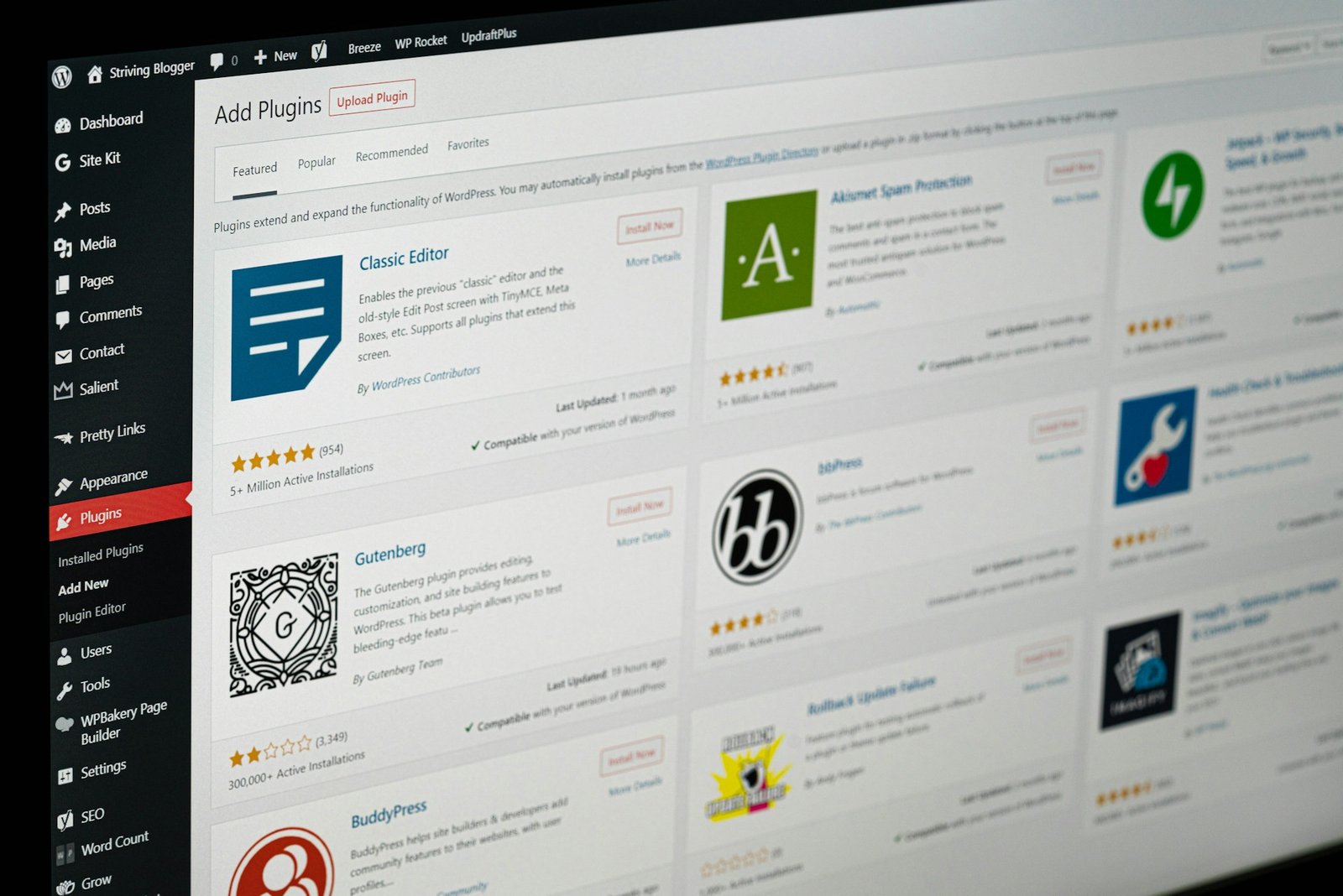
1. Confirm your backups actually ran. Do not trust the plugin’s green tick. Open your backup storage and look for a fresh file with a sensible size. A backup you cannot find is not a backup.
2. Update plugins, themes and WordPress. Read the changelog first. Security releases go in right away. For example, WordPress 7.1.1 (September 17, 2026) shipped 11 security fixes, and the WordPress team asked everyone to update immediately. For big feature releases, update on a staging copy first if you have one.
3. Run a quick security scan. Use your security plugin or your host’s malware scanner. Look for new admin users you did not create, unknown files and failed login spikes.
4. Click through your key pages. Home, a top blog post, your pricing or shop page and your contact page. On an Elementor site, check one page on mobile too. Updates sometimes shift a layout or hide a widget, and visitors will not tell you.
Monthly tasks (about 30 minutes)
5. Test your speed. Run your homepage and one inner page through PageSpeed Insights. Watch the Core Web Vitals, especially INP and LCP on mobile. A slow drift often comes from a new plugin, an uncompressed image or a heavy section someone added.
6. Fix broken links. Use a link checker or the crawl report in Google Search Console. Broken links annoy visitors and waste crawl budget.
7. Test every form and email. Send a real message through each contact, quote and signup form. Confirm it lands in the inbox, not spam. Silent email failures are one of the most common problems we see on WordPress sites.
8. Clean the database. Delete spam comments, old revisions, trashed posts and expired transients. A lighter database makes backups smaller and the admin faster.
9. Review users and roles. Remove people who left the project. Make sure only the people who need it have the Administrator role. Turn on two factor login or passkeys for every admin account.
10. Check Google Search Console. Look for new indexing errors, manual actions or a sudden traffic drop. It is free and it often spots problems before you do.

Quarterly tasks (about 1 hour)
11. Test a full restore. Once a quarter, restore a backup to a staging site and click around. This is the only way to know your backup works. Many site owners learn it does not on the worst possible day.
12. Remove plugins you do not use. Deactivated plugins can still be attacked if their files sit on the server. Delete them. While you are there, look for plugins that have not been updated in a year or more and plan a replacement.
13. Check your PHP version. WordPress 7.0 raised the minimum to PHP 7.4, and the recommended version is PHP 8.3 or newer. Open Tools, then Site Health, to see what you run. Newer PHP is faster and gets security fixes. Test on staging before you switch.
14. Review SEO basics. Check titles and meta descriptions on your top pages, update old posts that still get traffic, and make sure your sitemap loads.
15. Tidy your Elementor setup. Regenerate CSS and data from Elementor’s Tools screen if styles look off after updates. Turn off widgets you never use so they do not load assets. Check that global colors and fonts are still applied across templates.
Yearly tasks (about 2 hours)
16. Renew the things that expire. Domain name, SSL certificate (if your host does not auto renew), premium plugin licenses and email services. Set calendar reminders 30 days before each date.
17. Review your hosting. Is your plan still the right size? Look at uptime, support response times and whether the host offers current PHP versions, staging and daily backups. Moving hosts once a year is not needed, but checking is.
18. Audit your content. Update, merge or delete thin and outdated posts. Refresh screenshots and prices. Old content with wrong facts hurts trust and search rankings.
19. Refresh passwords and access. Change hosting, FTP, database and admin passwords. Remove old API keys and app passwords you no longer use.
20. Write down how your site works. Keep a short document with logins (in a password manager), plugin list, backup location and who to call when something breaks. Future you will be grateful.

Make maintenance easier with fewer plugins
Every plugin you add is one more thing to update, scan and test. That is why the smartest maintenance step is often to use fewer, better plugins.
On Elementor sites, one well built addon pack can replace several single purpose plugins for things like tabs, pricing tables, sliders and counters. That means one changelog to read and one plugin to update instead of five. The free Bright Addons widgets are built with this in mind, and our documentation walks you through setup step by step.
If you manage many client sites, the Agency plan covers unlimited websites with one license, which keeps renewals simple too.
Frequently asked questions
How often should I update WordPress plugins? Check for updates at least once a week. Install security updates right away. For large feature updates, test on a staging site first or wait a few days for any quick fix release.
Is it safe to turn on automatic updates? For minor WordPress core releases and well maintained plugins, yes, as long as you have daily backups. For major updates and complex plugins like page builders and shops, many owners prefer to update by hand so they can test right after.
How long does WordPress maintenance take each month? For a small business site, about one hour a month covers the weekly and monthly tasks. Add an hour each quarter and a couple of hours once a year.
What is the most important maintenance task? Working backups. Updates, scans and speed checks all matter, but a tested backup is what lets you recover from anything else going wrong.
Conclusion
A WordPress maintenance checklist is not exciting, but it is the difference between a site that quietly works and one that fails at the worst moment. Start with the weekly 15 minutes, put the monthly and quarterly tasks in your calendar, and test a restore before you need one. Your visitors will never notice the work, and that is exactly the point.
Want a lighter plugin stack for your next Elementor build? Explore Bright Addons and start with the free version.