You open your site and instead of your homepage you get one plain line: “There has been a critical error on this website.” No design, no menu, sometimes no way into the dashboard either.
Take a breath. The critical error on this website message looks dramatic, but it rarely means your content is gone. In most cases one plugin, one theme file or one server setting has stopped PHP from finishing its job. Your pages, posts and Elementor layouts are still sitting safely in the database.
This guide walks through 8 fixes in the order you should try them, starting with the fastest. Most sites are back online by fix 3.
What the critical error actually means
WordPress runs on PHP. When a PHP script hits a fatal error, it stops, and the page cannot be built.
Older versions of WordPress showed a blank white page when this happened. Since WordPress 5.2, the system catches the fatal error, shows the short message you are seeing now, and emails the site admin with a way back in.
So the message is a safety net, not the problem itself. Your job is to find which piece of code crashed.
The usual causes
| Cause | Typical sign |
|---|---|
| Plugin conflict or a bad plugin update | Error appeared right after an update or a new install |
| Theme problem | Error appeared after switching themes or editing functions.php |
| Old or mismatched PHP version | Error appeared after a host upgrade or a WordPress major update |
| PHP memory limit reached | Error appears on heavy pages or inside the editor only |
| Corrupted core files | Error appeared after a failed or interrupted update |
| Broken custom code snippet | Error appeared seconds after you saved a snippet |
Think about what changed last. That one answer usually points to the right fix.
8 fixes for the critical error on this website
1. Check your inbox for the recovery mode email
When WordPress catches a fatal error, it sends an email to the site admin address. The subject usually starts with “Your Site is Experiencing a Technical Issue”.
That email does two useful things:
- It names the plugin or theme that caused the error, often with the exact file and line.
- It includes a special link that opens your dashboard in recovery mode.
In recovery mode, the broken plugin or theme is paused for you only. You can log in, deactivate or update the culprit, and then exit recovery mode. Check your spam folder if nothing arrives, and remember the email goes to the address in Settings, General, which may be an old one.
2. Turn on the debug log
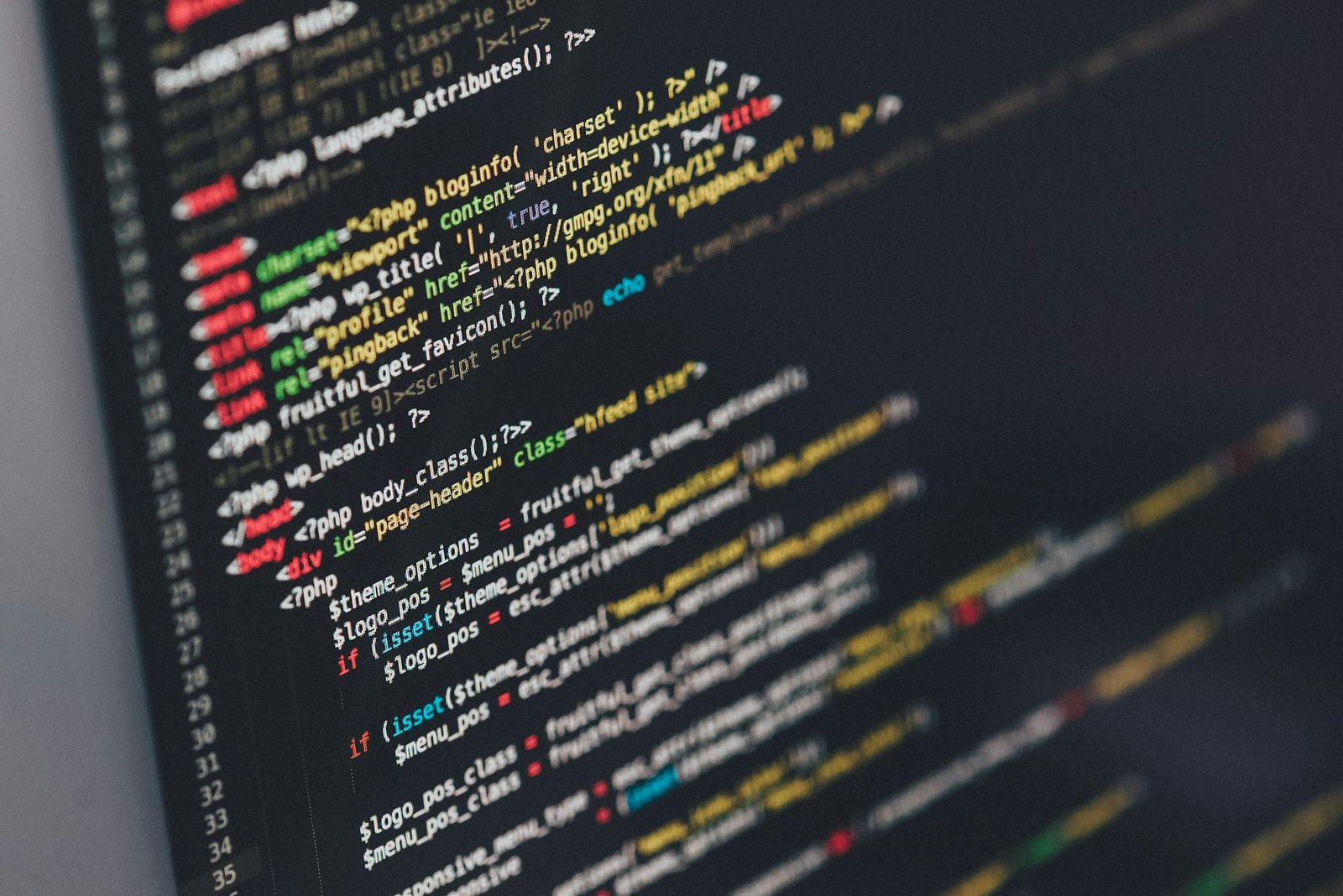
No email? Ask WordPress to write the error down. Open wp-config.php with your host’s file manager or FTP and add these lines above the “That’s all, stop editing” comment:
define( 'WP_DEBUG', true );
define( 'WP_DEBUG_LOG', true );
define( 'WP_DEBUG_DISPLAY', false );
Reload the broken page, then open wp-content/debug.log. Look at the last “PHP Fatal error” line. The file path in that line tells you which plugin or theme folder is responsible.
The third line keeps errors hidden from visitors, which matters on a live site. Set WP_DEBUG back to false when you are done.
3. Deactivate plugins without the dashboard
Plugins cause most critical errors. If you cannot log in, you can still switch them off:
- Open your site files with the host file manager or FTP.
- Go to wp-content.
- Rename the plugins folder to plugins-off.
- Reload your site.
If the site loads, a plugin is the cause. Rename the folder back to plugins, log in, and activate your plugins one at a time until the error returns. The last one you activated is the one to update, replace or report to its developer.
If the debug log already named a plugin, rename only that plugin’s folder instead. It is faster.
4. Switch to a default theme
If plugins are innocent, test the theme. In wp-content/themes, rename your active theme’s folder. WordPress will fall back to a default theme such as Twenty Twenty-Five if one is installed.
Site back? The problem is in the theme, often in functions.php or in a child theme edit. Restore a clean copy of the theme, or undo the last change you made.
Your Elementor designs are not lost when you do this. They are stored in the database and reappear as soon as a working theme is active.
5. Raise the PHP memory limit
If the log says “Allowed memory size exhausted”, PHP ran out of room. This is common on pages with many widgets, large images or several heavy plugins loading at once.
Add this line to wp-config.php:
define( 'WP_MEMORY_LIMIT', '256M' );If nothing changes, your hosting plan may cap memory at a lower number. Ask your host to raise it, or check the PHP settings in your hosting panel.
6. Check your PHP version
PHP versions matter more in 2026 than they used to. WordPress 7.0 dropped support for PHP 7.2 and 7.3, so the minimum is now PHP 7.4, and WordPress recommends PHP 8.3 or greater.
Two things can go wrong:
- PHP is too old. A newer plugin uses code that old PHP cannot read.
- PHP is too new for an old plugin. Your host moves you to a newer PHP version, and an abandoned plugin breaks.
Open the PHP settings in your hosting panel and check the version. Moving to a current version fixes the first case. For the second, switch back one version for a short time, replace the outdated plugin, and then move forward again.

7. Re-upload WordPress core files
If the error began after an update that froze halfway, core files may be incomplete. Download a fresh copy of WordPress from wordpress.org (the current release at the time of writing is 7.1.3), unzip it, and upload the wp-admin and wp-includes folders over the old ones.
Do not upload or overwrite wp-content or wp-config.php. Those hold your themes, plugins, uploads and database details.
8. Restore a backup
If nothing above works, or you need the site live in the next ten minutes, restore the most recent backup from before the error. Most hosts offer daily backups in the control panel.
A restore is a rescue, not a diagnosis. After the site is back, repeat the update that broke it on a staging copy first, so you find the real cause without taking the live site down again.
How to stop it happening again
A few habits prevent most repeat incidents:
- Update one plugin at a time, not twenty at once, so you always know which one broke things.
- Test major updates on a staging site first.
- Keep automatic backups running, and confirm you can actually restore one.
- Remove plugins you no longer use. Abandoned code is the first thing to break on a new PHP version.
- Run fewer, lighter plugins. Every extra plugin is one more thing that can conflict.
That last point is where your choice of Elementor addons matters. A single well-maintained widget pack is easier to keep healthy than five overlapping ones. If you want one pack instead of several, Bright Addons covers the common needs in a single plugin. You can browse the full list on the widgets page and find setup help in the docs.
FAQ
Will I lose my content because of a critical error?
Almost never. The error stops PHP from building the page, but your posts, pages, media and Elementor layouts stay in the database and the uploads folder. Once the faulty code is removed, everything returns.
Why did I not get the recovery mode email?
The email goes to the admin address saved in your WordPress settings, which may be outdated. It can also land in spam, or fail to send if your server’s mail function is not working. If it does not arrive, use the debug log in fix 2 instead.
Can Elementor cause a critical error?
Any plugin can, including page builders and their addons. With Elementor the usual triggers are a low memory limit, an outdated PHP version, or an addon that has not been updated to match the current Elementor release. Updating everything together and raising memory solves most cases.
Is it safe to leave WP_DEBUG turned on?
Not on a live site for long. Debug mode can slow pages down, and the log file can grow large and expose file paths. Turn it on, find the error, then set it back to false and delete debug.log.
The short version
The critical error on this website message means one piece of PHP code crashed, and WordPress is protecting the rest of your site while you fix it. Check the recovery email, read the debug log, then test plugins, theme, memory and PHP version in that order. Keep a backup ready for the day you need the site back fast.
If you are rebuilding with a lighter setup afterwards, Bright Addons gives you 20 free Elementor widgets to start with, and the Pro plans with 60+ widgets start at $19 per year with a 14-day refund. Details are on the pricing page.