
Imagine a visitor clicks a link on your site and the next page is simply there. No white flash, no spinner, no waiting. That is the promise of speculative loading in WordPress, and the surprising part is that your site may already be doing it.
Since WordPress 6.8, released in April 2025, core quietly adds a small set of instructions to every front-end page. Those instructions tell supporting browsers which links are safe to load early. When a visitor starts to click, the browser gets a head start on the next page.
In this guide we explain what speculative loading is, how WordPress uses it by default, how to check that it works on your Elementor site, and when it is worth turning it up (or down).

What is speculative loading?
Speculative loading means the browser loads a page before the visitor has fully asked for it. It “speculates” that you are about to open that link, so it starts early.
It is powered by a web standard called the Speculation Rules API. A site adds a short block of JSON inside a <script type="speculationrules"> tag. That block says which URLs the browser may load early, how early it may do so, and which URLs it must never touch.
There are two ways to load early:
- Prefetch downloads the HTML of the next page in the background. When the visitor clicks, the browser already has the document, so the page appears faster.
- Prerender goes further. It loads and renders the whole next page in a hidden tab, including images, CSS and scripts. When the visitor clicks, the finished page swaps in almost instantly.
Prefetch is light and safe. Prerender is faster but uses more data, memory and server work.
How speculative loading works in WordPress by default
WordPress core turned this on for everyone in version 6.8. The default setup is deliberately cautious:
| Setting | WordPress core default | Speculative Loading plugin default |
|---|---|---|
| Mode | Prefetch | Prerender |
| Eagerness | Conservative (starts on pointer down or touch) | Moderate (starts after about 200 ms of hover) |
| Who gets it | Logged-out visitors on the front end | Logged-out visitors |
| Excluded | /wp-admin/, the login page, links with a nonce, nofollow links | Same, plus your own rules |
“Conservative” means the browser only starts when the visitor presses down on a link. That gives a small head start, often 50 to 100 milliseconds or more, which is enough to make many clicks feel quicker.
Core also switches the feature off entirely on sites that still use plain ?p=123 permalinks, and it skips logged-in users so editors and shop managers are never affected.
The WordPress Performance Team, which built the feature, has a public proposal to move the default to “moderate” on sites that use page caching. At the time of writing that change is still open and has not shipped, so conservative prefetch remains the core default.
Which browsers support it?
Speculation rules work today in Chrome, Edge, Opera, Samsung Internet and other Chromium browsers. On these browsers the feature is already part of everyday browsing: the Performance Team reports that more than 8% of all Chrome navigations use speculation rules.
Safari includes the feature but keeps it disabled by default, and Firefox support is still being prototyped. The good news is that unsupported browsers simply ignore the rules. Nothing breaks. Those visitors just load pages the normal way.
Chrome also holds back on its own when it makes sense, for example when the visitor has Data Saver or battery saver turned on, when the device is low on memory, or when the “Preload pages” setting is off.
Does it really make WordPress faster?
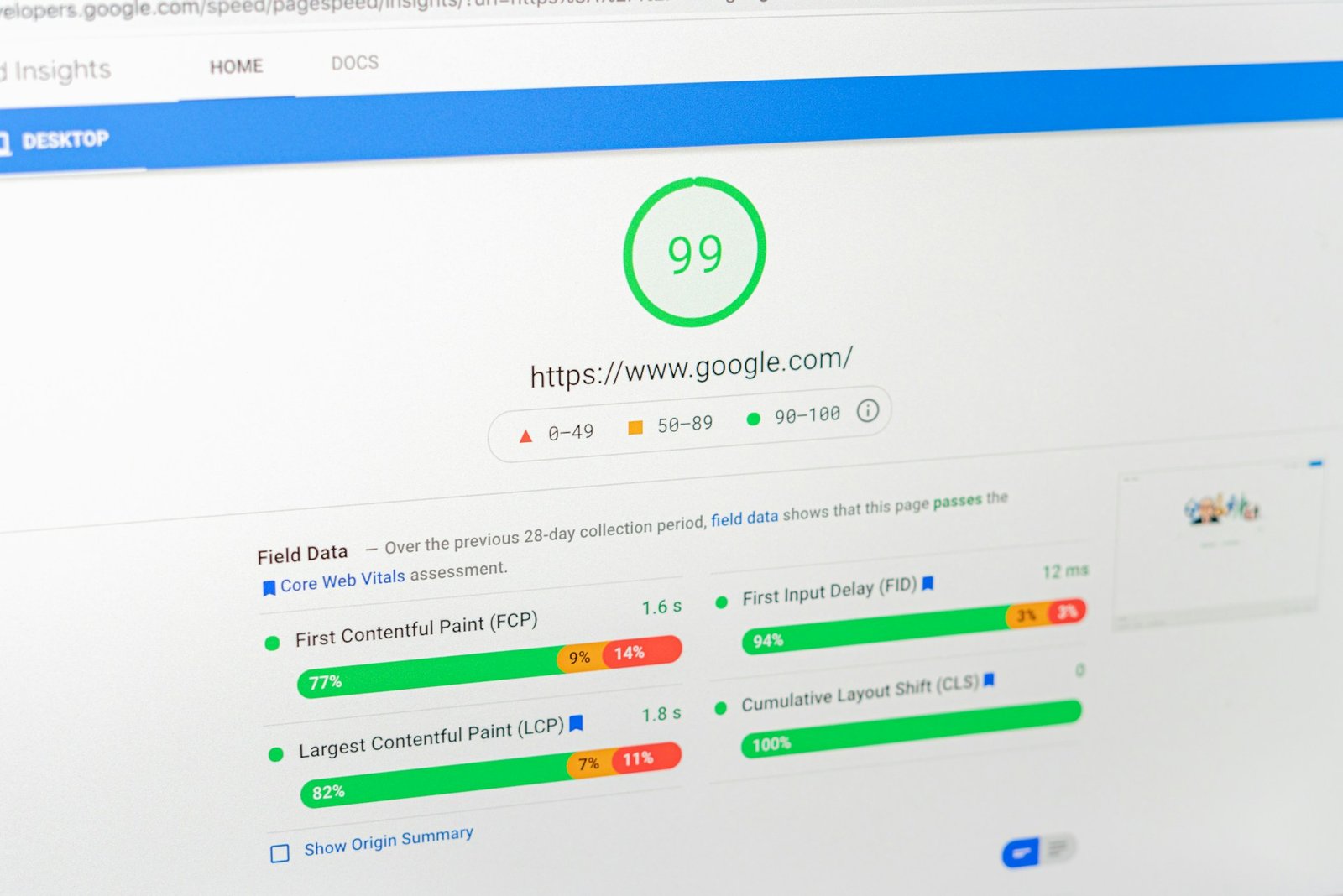
Yes, though the gain depends on your setup. After the 6.8 launch, the Performance Team looked at real-world data from more than 50,000 WordPress sites using the HTTP Archive and the Chrome User Experience Report. Sites with speculative loading saw their median Largest Contentful Paint (LCP) passing rate improve by about 1.9%.
That sounds small, but remember it comes for free, on every site, with no setup. On a site that also has good caching, a faster host and lighter pages, moving to moderate prerender can make the second and third page of a visit feel close to instant.
Speculative loading does not fix a slow first page. It only helps the next click. Your first load still depends on image sizes, fonts, plugins and hosting. If that part needs work, our guide on how to speed up an Elementor site is a good place to start.
How to check speculative loading is working on your site
You can confirm it in two minutes:
- Log out of WordPress, or open your site in a private window. Remember, logged-in users are excluded.
- Right click the page and choose View page source. Search for
speculationrules. You should see a short JSON block with"prefetch"or"prerender"and an"eagerness"value. - Open Chrome DevTools, go to the Application panel, then Background services > Speculative loads. Hover or press on a link, and you will see the browser fetch it early.
If you see nothing, check your permalinks (Settings > Permalinks). Anything other than “Plain” is fine. Also make sure a performance plugin is not stripping inline scripts.
How to tune speculative loading safely
You have three options, from easiest to most hands-on.
Option 1: Leave the default
For most small business sites, blogs and portfolios, conservative prefetch is a safe, free win. You do not need to do anything.
Option 2: Use the Speculative Loading plugin
The official Speculative Loading plugin from the WordPress Performance Team adds a simple screen under Settings > Reading. There you can pick the mode (prefetch or prerender) and the eagerness (conservative, moderate or eager). Its default is moderate prerender, which is noticeably faster on well-cached sites.
Option 3: Use a few lines of code
Developers can control everything with two core filters. Add these to a small custom plugin or a code snippets plugin, not to a theme you might update.
Keep the browser away from cart, checkout and account pages:
add_filter( 'wp_speculation_rules_href_exclude_paths', function ( $paths ) {
    $paths[] = '/cart/*';
    $paths[] = '/checkout/*';
    $paths[] = '/my-account/*';
    return $paths;
} );
Switch to moderate prerender:
add_filter( 'wp_speculation_rules_configuration', function () {
    return array( 'mode' => 'prerender', 'eagerness' => 'moderate' );
} );
Turn the feature off completely, if you ever need to:
add_filter( 'wp_speculation_rules_configuration', '__return_null' );For single links, you can also add the CSS class no-prerender (blocks prerender only) or no-prefetch (blocks both) to a button or link in the Elementor Advanced tab.
Things to watch on Elementor and WooCommerce sites
Prerender runs your page code before the visitor sees it. That is great for speed, but a few things deserve a quick check:
- Analytics and ads. Google’s own tags wait until a prerendered page is actually shown, but check any other tracking or ad scripts so they do not count views that never happen.
- Pages that change things. Links that log people out, add items to the cart or apply a coupon should never be loaded early. Exclude them with the filter above or the
no-prefetchclass. - Entrance animations and counters. Some animations may start while the page is still hidden. If a counter or animated headline looks “finished” on arrival, add
no-prerenderto links pointing at that page, or stay on prefetch. - Server load. Moderate and eager settings create more requests. With good page caching this is cheap. On a small shared host without caching, stick with prefetch.
Well-built widgets make this easier. Each of the 131 widgets in Bright Addons (51 free and 80 Pro) loads only the CSS and scripts it needs, so prefetched and prerendered pages stay light. You can browse the full widget library or read the docs to see how each one is set up.
Prefetch or prerender: which should you pick?
A simple rule of thumb:
- Keep conservative prefetch if you run a shop, a membership site, or you are on budget hosting without page caching.
- Try moderate prefetch if you have page caching and want a bit more speed with little risk.
- Try moderate prerender for brochure sites, blogs and portfolios with good caching, where most pages are static and the same for every visitor.
Change one thing at a time, then test your key pages logged out and keep an eye on analytics for a week.

FAQ
Is speculative loading turned on in WordPress by default?
Yes. Since WordPress 6.8, core adds speculation rules for logged-out visitors on the front end, using prefetch with conservative eagerness. Sites using plain permalinks are skipped.
Will speculative loading break my Elementor site?
It is very unlikely with the default prefetch setting, because only the page HTML is downloaded early. With prerender, test animations, analytics and any links that change data, and exclude them if needed.
Does speculative loading help SEO?
Indirectly. It makes the next page faster for real visitors on Chromium browsers, which can improve Core Web Vitals field data such as LCP. It does not change how search engines crawl your site.
How do I turn speculative loading off?
Add add_filter( 'wp_speculation_rules_configuration', '__return_null' ); to a custom plugin or snippets plugin. If you use the Speculative Loading plugin, deactivate it first to return to core defaults.
Conclusion
Speculative loading in WordPress is one of the rare speed upgrades that costs nothing and works quietly in the background. The default already gives every click a small head start. If your site has solid caching, moving to moderate prefetch or prerender can make browsing feel almost instant.
Check that it is running, exclude anything that changes data, and test one change at a time. If you are building faster Elementor pages, start with the free Bright Addons plugin from our home page, and when you need more widgets, see the plans and pricing, starting from $18 a year. Every plan is 50% off for Black Friday until Cyber Monday, November 30.